Google Apps Script Automation
Visual step-by-step guide to set up automatic email classification
📜 KIWacht Script
💡 Tip: You don't need to read or understand the script. Just copy it and paste it into Google Apps Script.
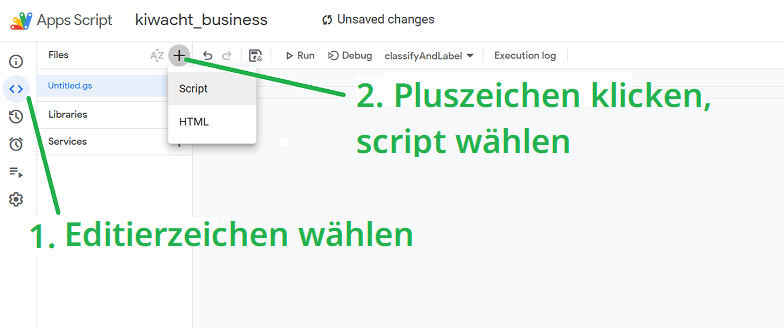
Create New Script
Click on the editor icon (1), then on "Add File" → "Script" (2).
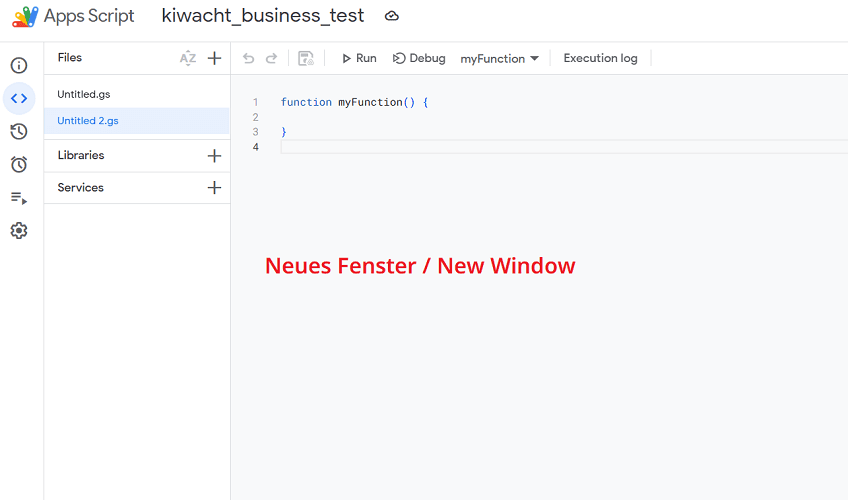
Empty Script Window Opens
A new window with a default function appears.
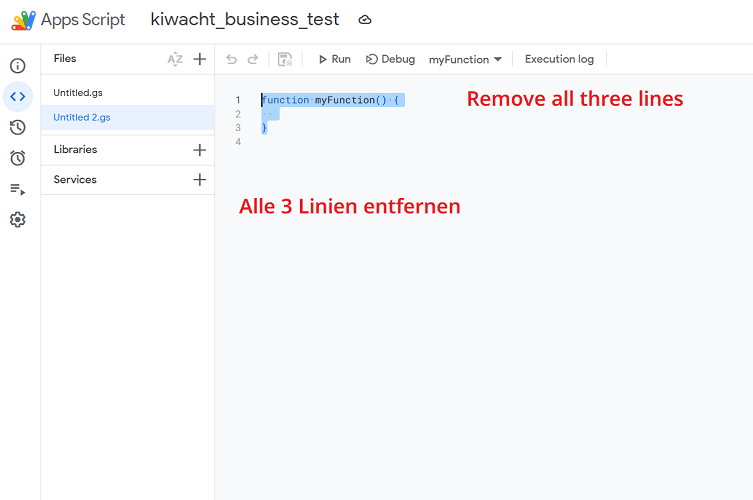
Delete Default Function
Select and delete the entire myFunction (all three lines).
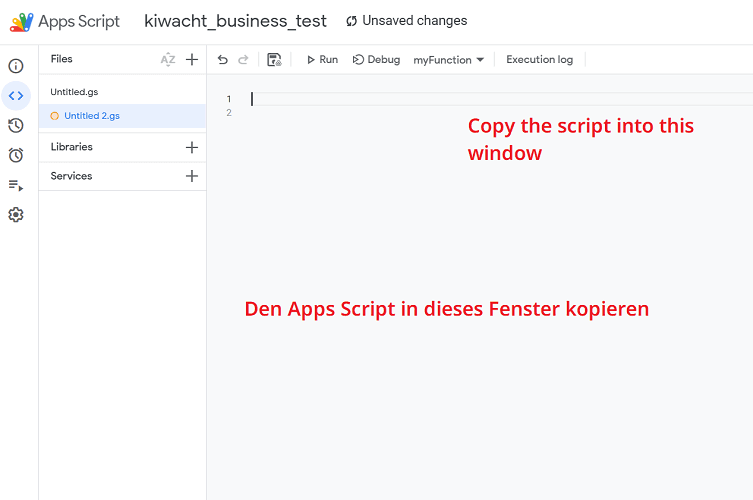
Paste KIWacht Script
Copy the complete KIWacht script and paste it here.
Insert API Key
Find the line with KIWACHT_API_KEY = 'kws_YOUR_API_KEY_HERE'.
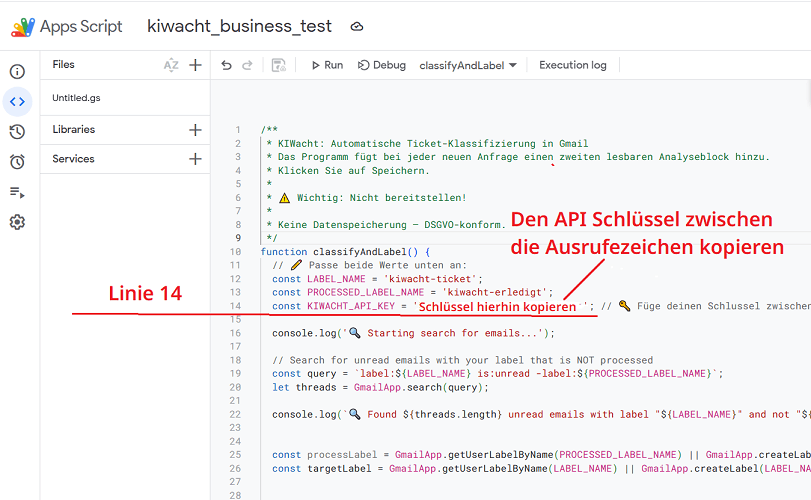
Replace the placeholder with your actual key — without removing the apostrophes.
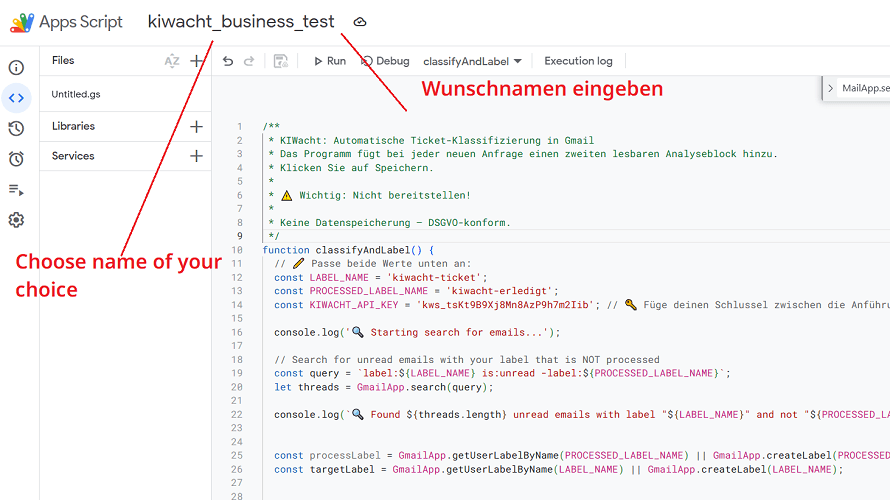
Name the Project
Click on the project name in the top left and change it to e.g. "KIWacht".
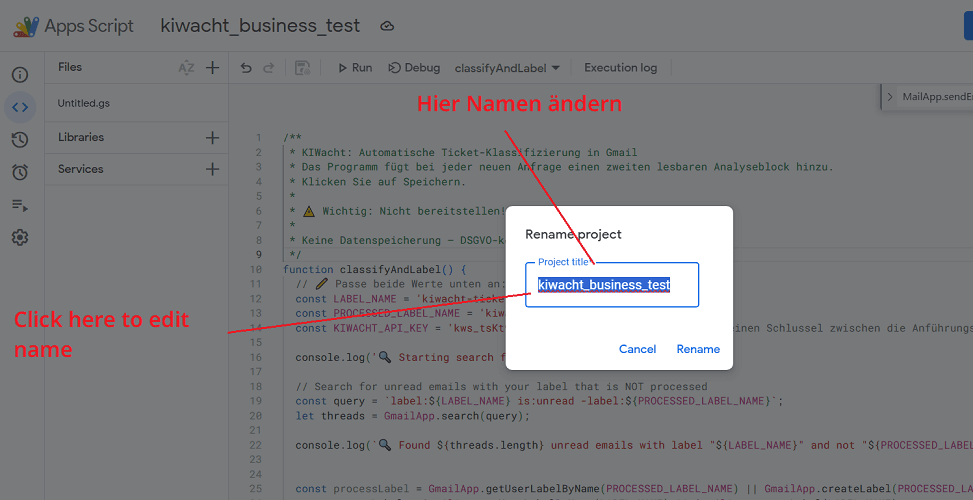
Confirm Rename
Enter the new name in the pop-up window and confirm with "OK".
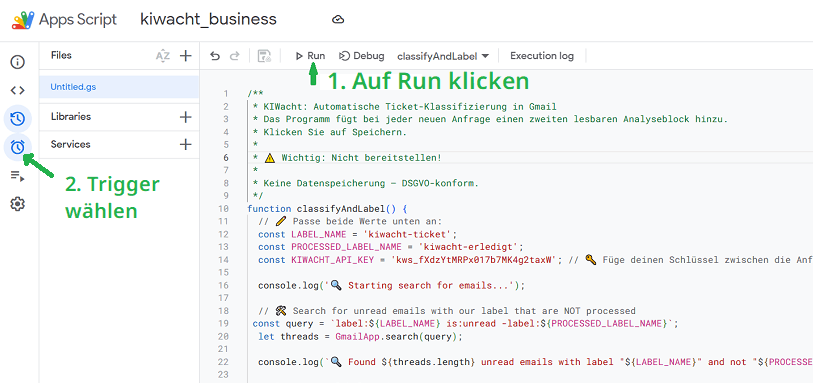
Test Script and Open Triggers
Click on:
- Arrow 1: The "Run" button (▶️) to test the script manually
- Arrow 2: The trigger icon (left in the sidebar) to set up automatic execution
Add Automatic Trigger
Click on the "+ Add Trigger" button (arrow).
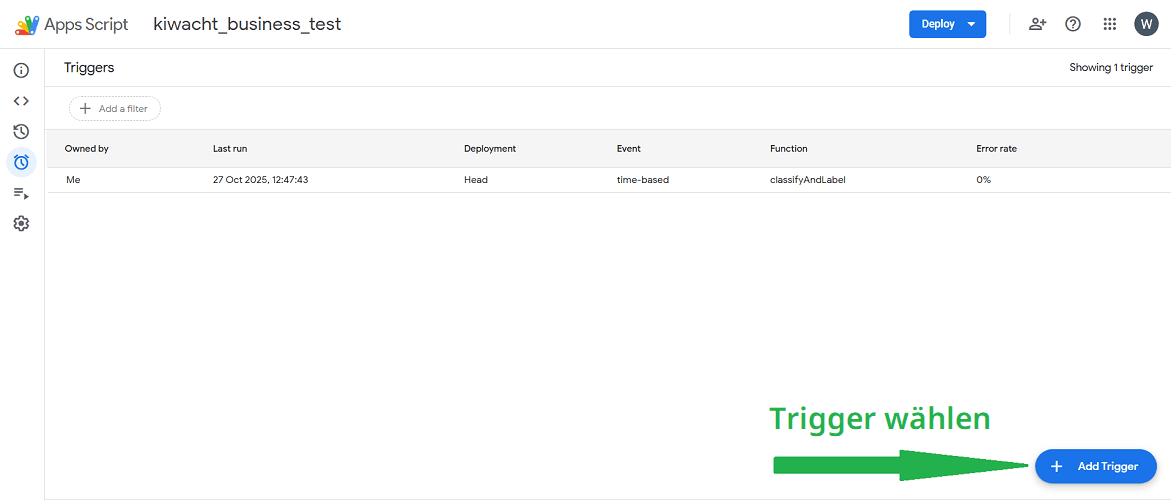
⚠️ Without this step, the script will not run automatically!
Important: Don't Forget to Save!
Click "Save" (Ctrl+S) after pasting the script and inserting your API key.Deploying is not necessary - saving is enough!